Pages and blocks
Pages and posts
The Pages tab lists the site's pages as a tree: a page below another
one has its address below it, such as /about/team below /about. The
start page is /. Drag a page in the list to put it elsewhere in the
order, or below another page.
New page asks for a title and where the page goes (Below: the top
level or another page). Switch on Blog post and pick a date to make a
post; the time is filled in with the current one. Posts are listed by
date and time, newest first, on the page they're below (usually the
blog), and they get a feed. The time keeps posts of one day in order in
feed readers; it's your computer's time zone, and you can change it or
leave it empty in the page's Settings tab. A blog with many posts can
group them with a page per day, month or year below it, named by the
date (/blog/2026-10-21, /blog/2026) and with a Post list of its own:
the posts below those still go into the blog's one feed. The dialog shows the address
the page will get, made from the title; you can change it later.
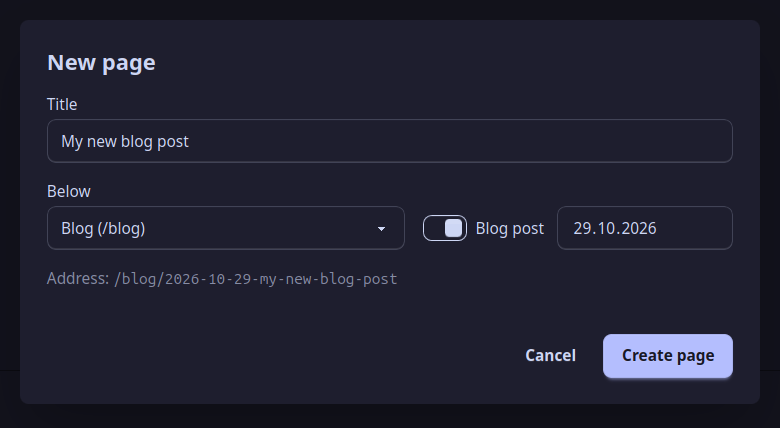
A new blog post: below the Blog, with a date.
Pick a page to edit it. The editor has three tabs:
- Content: the page's blocks (below).
- Settings: title, description, menu, order and more (further down).
- Versions: earlier states of this page (see Versions).
The Pages tab: the pages on the left, the one you picked in the editor on the right.
The buttons next to the tabs move or rename the page (; it keeps its old address, listed under Old addresses in its Settings tab, and links to it are updated) and delete it (). The start page can't be moved or deleted.
Blocks
A page is made of blocks, one below the other. The row at the bottom (Add:) adds one; the arrows move a block up or down, the handle on the left drags it, and removes it.
- Text: Markdown, a simple way of writing formatted text (see below).
- Hero: a large header with a headline, text and a button, on a picture or a color.
- Image: one picture with an alternative text and a caption.
- Text with image: text beside a picture, the picture on the left or right.
- Gallery: several pictures in a grid; each opens big on a click.
- Download: a file to download, with its type and size.
- FAQ: questions that open to show their answers.
- Columns: two to four columns side by side, each with blocks of its own; on phones they stack.
- Section: a band with a title, a background color or picture, which holds blocks of its own, columns included.
- Call to action: a highlighted box with a headline, text and a button.
- Post list and Page list: the posts or the pages below a page, as a list, as cards or as tiles.
- Video: a video from YouTube, Vimeo or PeerTube, shown as its picture and linked, or a video file from Downloads.
- Shared block: shows a shared block (below).
Podcast sites add Latest episode, Subscribe and Contributors.
Every picture needs an alternative text: a short description for people who can't see it and for search engines.
Writing text
Text blocks use Markdown. The text editor shows the formatting as you type, and its toolbar adds it for you:
**bold**for bold,*italic*for italic## Headingon a line of its own for a heading- itemlines for a list,1. itemfor a numbered one[the text](/about)for a link (more below)for a picture from Media
Four HTML tags work in text, for what Markdown has no way to write:
<kbd>Ctrl</kbd>+<kbd>S</kbd>for keys: Ctrl+Sm<sup>2</sup>andCO<sub>2</sub>: m2, CO2<br>for a new line where Markdown has none, such as inside a table cell
The four buttons after the two code buttons (code in a line, and a code block) in the toolbar put them in for you, around what you selected. Any other HTML shows as it is written, as text.
:icon-phone: puts an icon into the text, as tall as the letters (all
of them are in Icons). Math
($a^2 + b^2 = c^2$) and a few more things work too; the blog shows
them.
Columns and sections
Columns put blocks side by side. Each column has an optional title, a width (2× next to 1× is two thirds) and Box, which draws it on a background of its own. Some blocks need the full width and can't go in a column: Hero, Gallery, Columns and Section.
A Section groups blocks on a band: a title above them, a background (none, a box, a shade, one of the theme's colors, or a picture) and normal or large spacing. Three columns on a colored band are one Section with a Columns block inside.
Shared blocks
Some blocks belong on several pages: opening hours, a contact box. Click Make shared on a block and give it a name: it moves into a shared block, and a Shared block takes its place. Add it to other pages with Add: Shared block. Edit it once, under Shared blocks in the page list, and every page shows the change.
The Footer, under Templates in the page list, holds blocks shown at the bottom of every page.
Links
Link to another page of the site by its address, starting with a slash:
[About us](/about). Links to other websites are written in full:
[Podlove](https://podlove.org). Files in Downloads are linked as
/assets/menu.pdf.
When you build or preview the site, q.e.d. lists links to pages and files that don't exist, so a typo doesn't stay unnoticed. Moving a page updates the links to it.
Page settings
The Settings tab of a page:
- Title, and a Description for search engines and link previews.
- Share image: the picture shown when the page is shared; its first picture if empty.
- Menu: the main menu, the footer menu or none, and the Order among its neighbours (see Menus).
- Draft: left out of the website until you switch it off.
- Hide title: for pages whose first block says it already.
- Back and next links on the pages below: the pages below this one get links to the page before and after them at the bottom, for a manual or a course read in order. Posts get Older and Newer instead, as on a blog. This manual and its pages work that way.
- Icon: shown next to the page in menus.
- For posts: Date, Authors, Tags and a Summary for lists of posts.
Settings and content are saved separately, each with its own Save.
Translations
On a site with more than one language (see
Site settings), a row of language codes shows above
an open page. Translate next to a code starts the page's
translation: a copy of the page, still in the main language and saved
as a Draft, so it isn't published half done. Translate its title
and blocks, switch off Draft in its settings, and it's there, at
the same address below the language's code (/en/about for /about).
In the page list, a page's translations show as small codes on its row (EN); a click opens one. A translation keeps the address of its page: moving or renaming the page takes its translations along. A page with translations can only be deleted after them.
A link to another page by its file ([About](about.md)) leads to the
translation in the page's own language, when there is one; an address
written out (/about, /en/about) leads exactly there.
Questions
Why does my page not appear in the menu?
A page is in a menu only if its settings say so: Menu set to the main or the footer menu. Drafts are left out of the website altogether.
I deleted a page by mistake. Can I get it back?
Yes. The Versions tab lists Deleted pages with the last version that still had them; bring one back from there. See Versions.
Someone changed the page while I was editing it. What now?
q.e.d. notices when you save and asks: Keep mine saves your version over the other changes, Take the file's shows the page as the file has it now, Cancel saves nothing. That happens when the page was changed in another program, by hand, or on another computer and pulled here.
How do I put two things side by side?
With a Columns block: each column holds blocks of its own. On phones the columns stack, one below the other.